Snap any window into place
Drag a window to a screen edge or press a shortcut. Tilelume fits it to one of 39 layouts, or to one you draw yourself.
Paid once · Apple silicon, macOS 13+ · No account, no tracking
Drag a title bar to an edge or corner, or point at the screen and press a key.
In Tilelume, hold ⌃⌥ with the key. In this demo the key alone works.
- $2.99paid once, no subscription
- 39layouts, plus your own
- 100steps of undo
- 10languages, follows your Mac
How it works
Three ways to snap. Use whichever is closest.
Mouse, keyboard or menu bar. Every route ends in the same tidy layout.
Drag to an edge
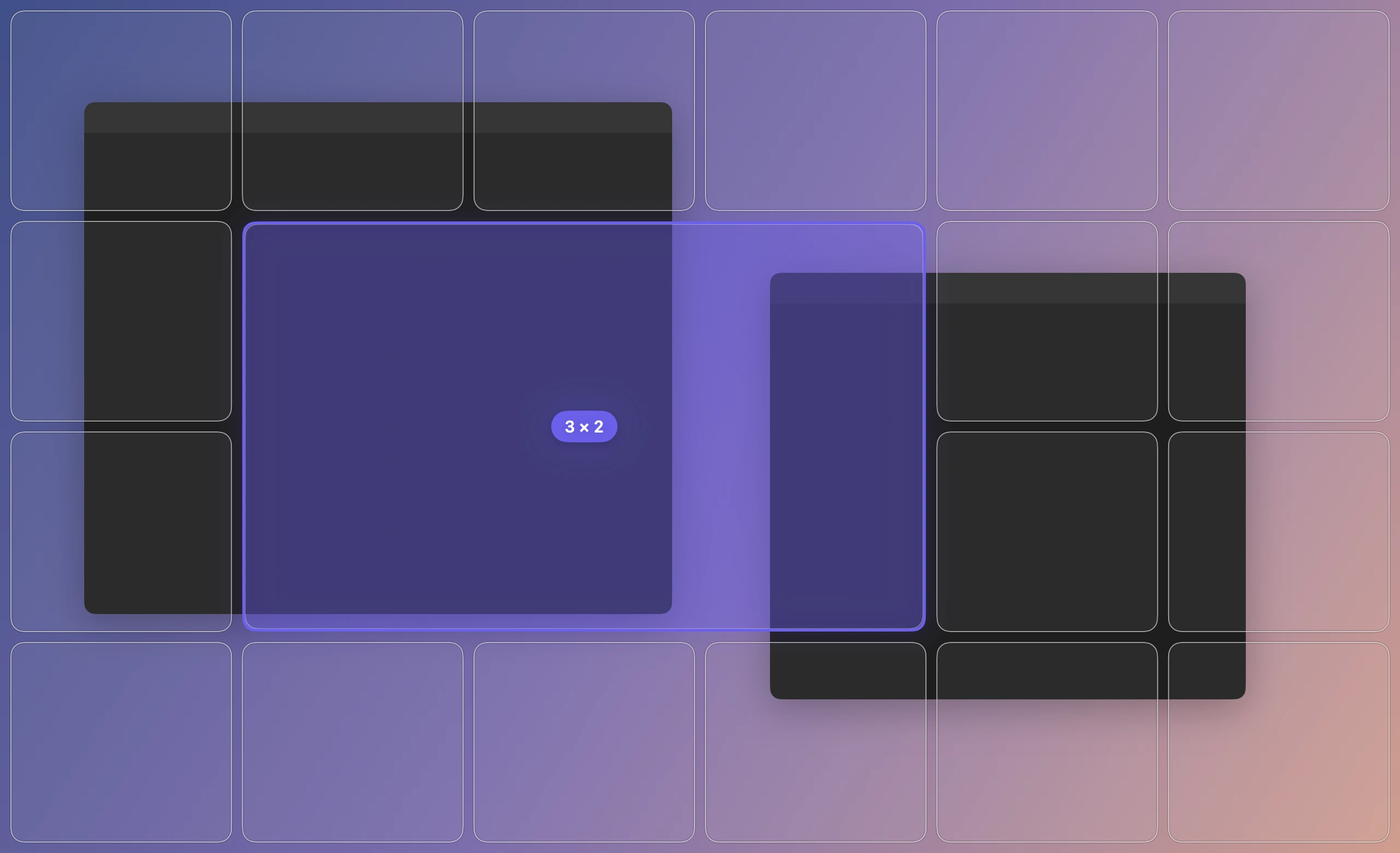
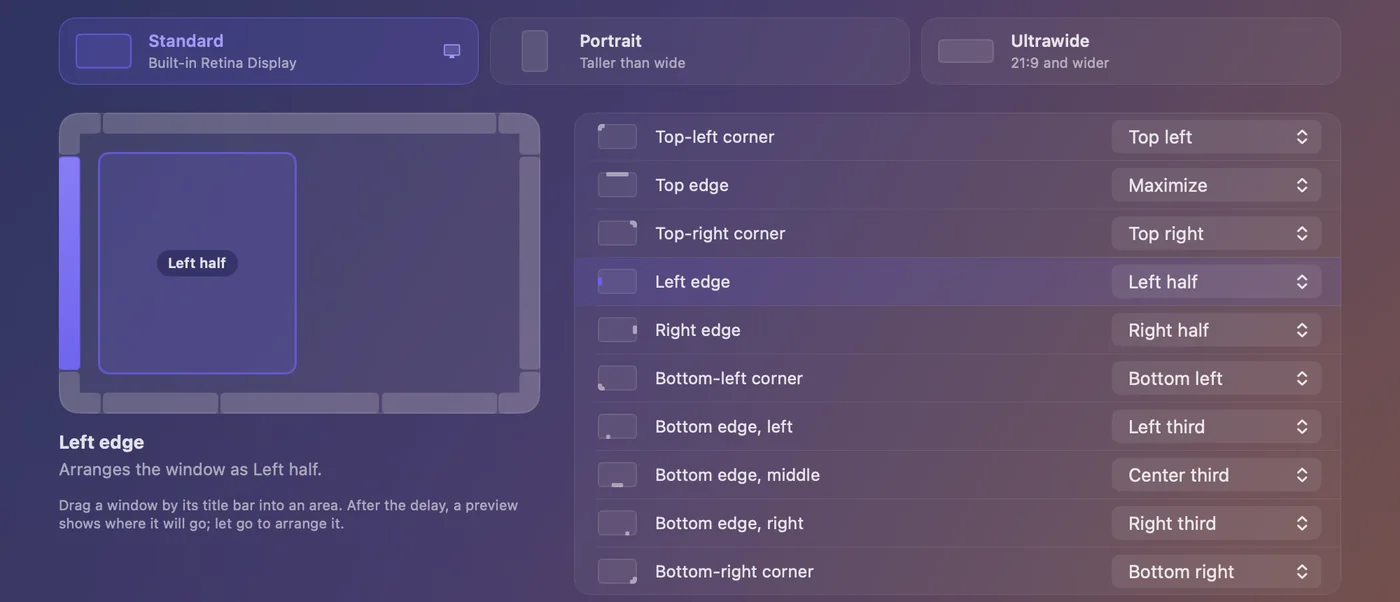
Drag a window by its title bar into an edge or corner. A preview shows where it will go; let go to arrange it. Hold ⇧ to sweep across a grid instead.
Press a shortcut
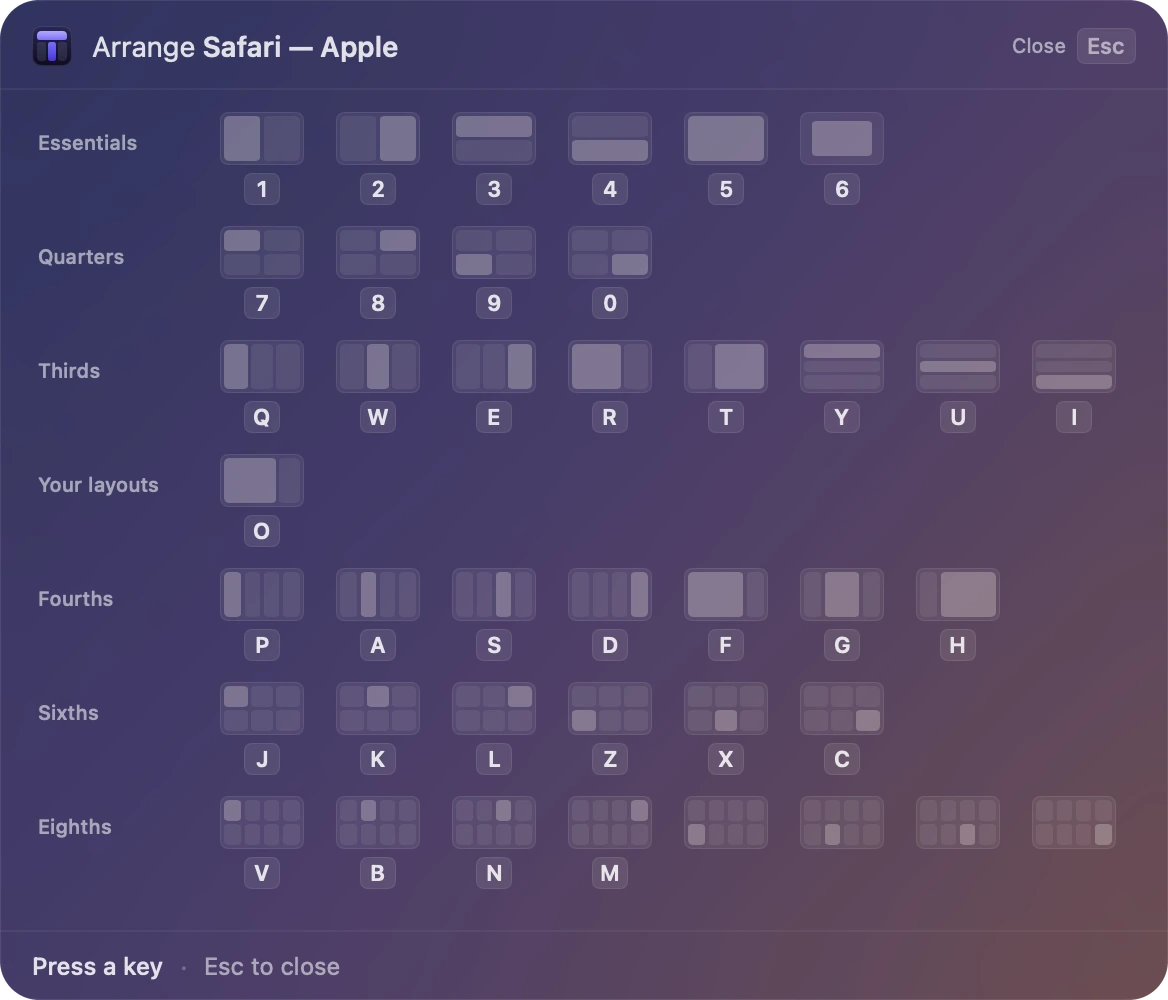
⌃⌥← for the left half, ⌃⌥→ for the right. Or press ⌃⌥P and pick any layout with one key.
Click a layout
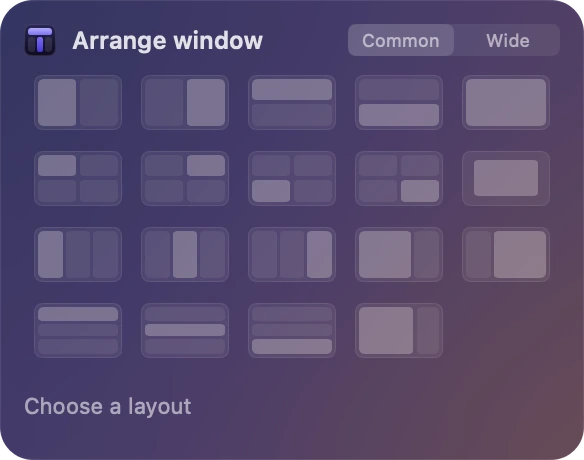
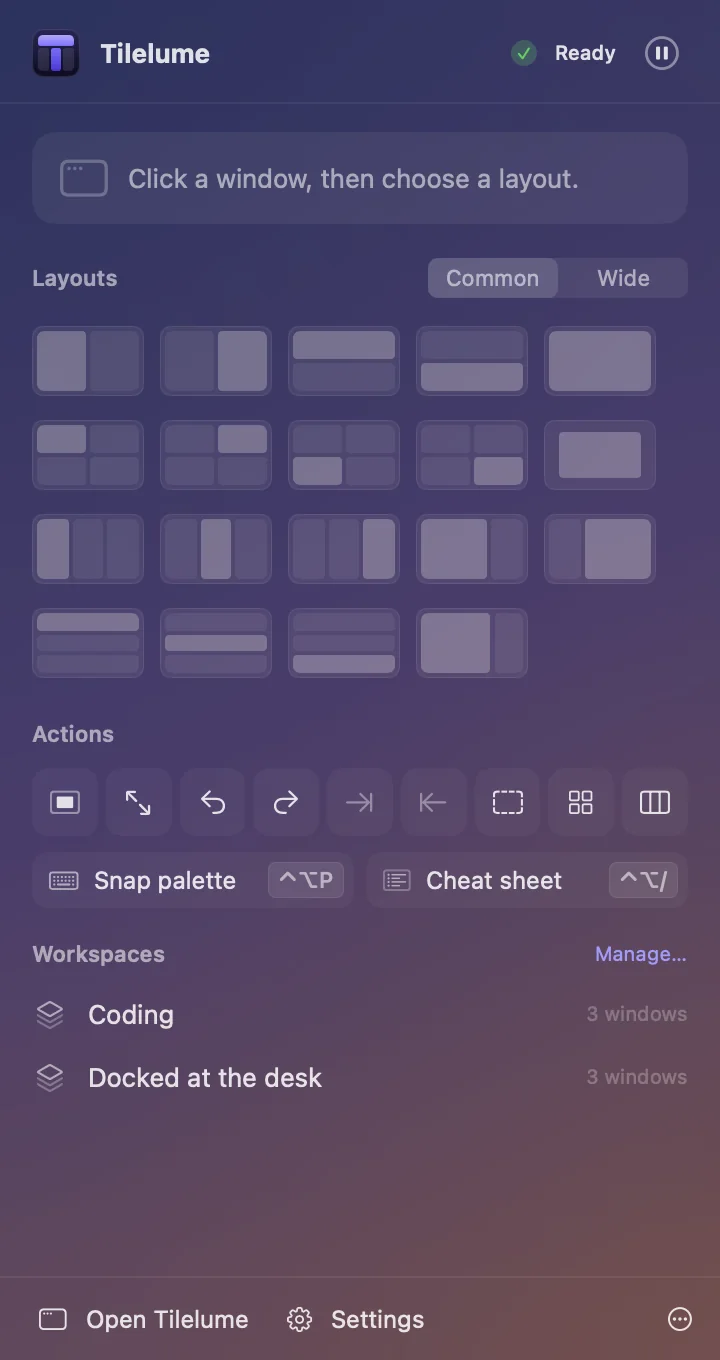
Hover the green button on any window, or open Tilelume from the menu bar, and pick from the grid.
This section is arranged the way Tilelume would: two thirds on the left, a quarter top right and bottom right.
Layouts
39 layouts built in. Draw the rest.
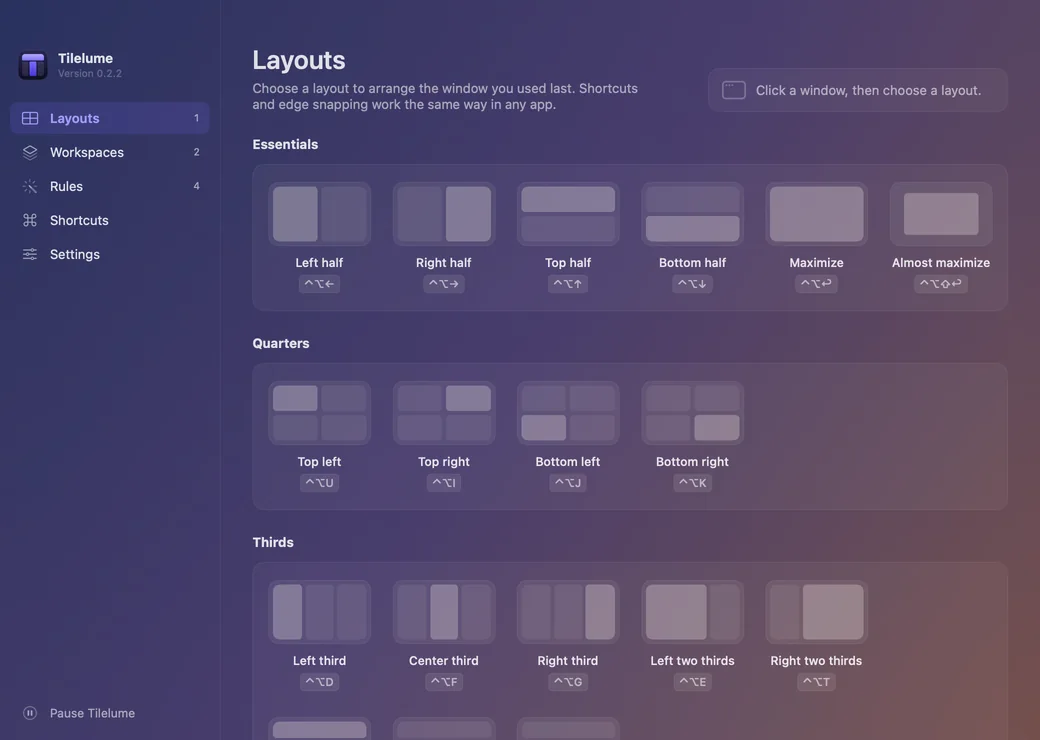
Halves, quarters, thirds and two thirds, maximize and almost maximize, plus fourths, sixths and eighths for wide displays. Pick one to see it.
Left half
⌃⌥←
Essentials 6
Quarters 4
Thirds 8
Fourths 7
Sixths 6
Eighths 8
Custom layouts
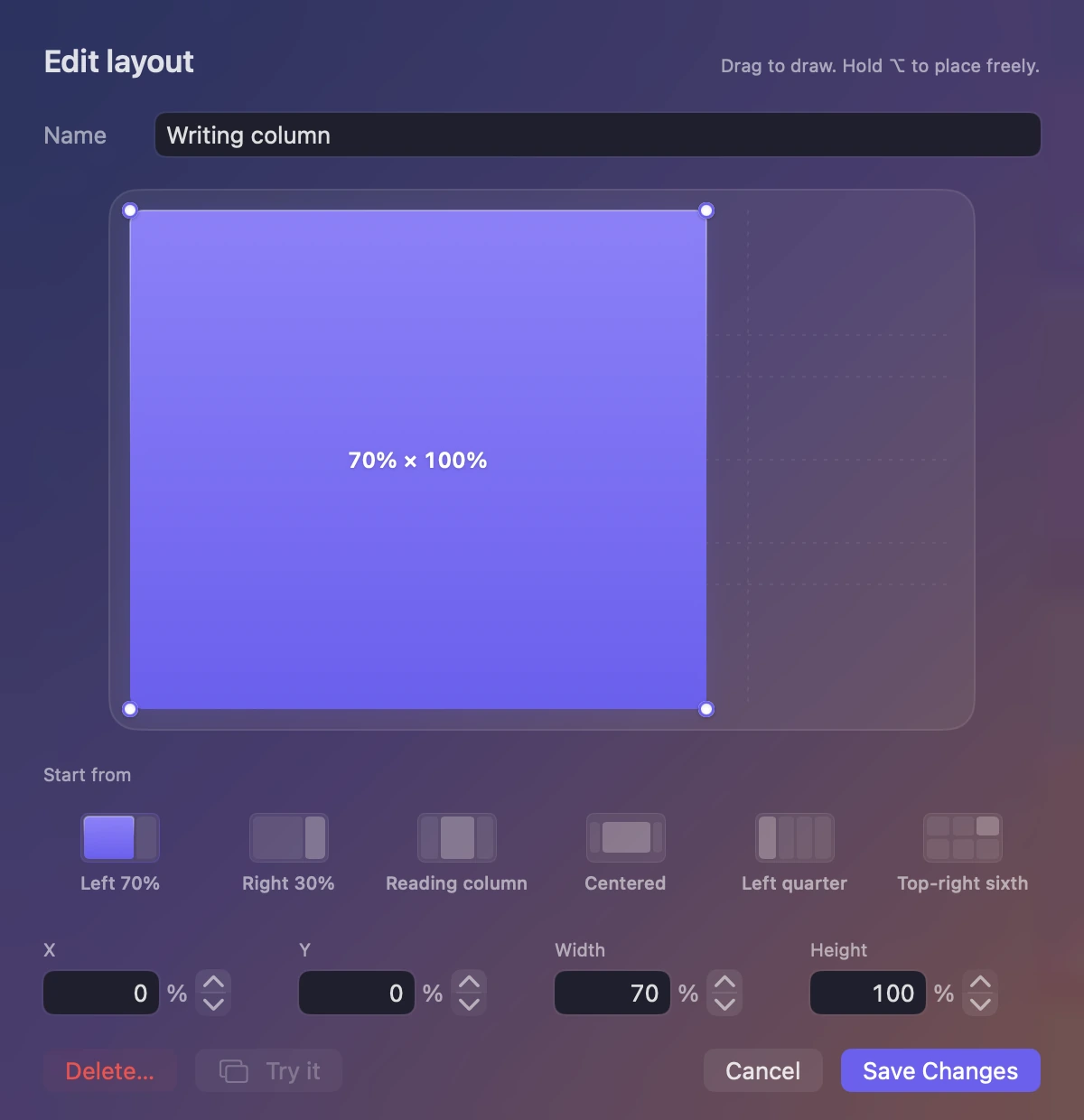
Want a 70/30 split for writing next to notes? Draw it.
Name it, give it a shortcut, and it sits beside the built-ins everywhere: the menu bar, the snap palette, edge triggers and rules.
- Exact percentages, with edges that snap to tenths and twelfths
- Try a layout on the front window before you save it
- Inner and outer gaps, if you like a little space between windows
The app
Made for macOS. Feels like part of it.
A native SwiftUI and AppKit app that lives in your menu bar. Warm glass that lets your desktop show through, light and dark, five accent colors, and full respect for Reduce Motion and Increase Contrast.
Displays
Fits the display you actually have.
Every display gets trigger areas that suit its shape: standard, portrait or ultrawide. Portrait displays split each side into upper, middle and lower zones. On an ultrawide, edges can map to thirds and corners to sixths.
Keyboard
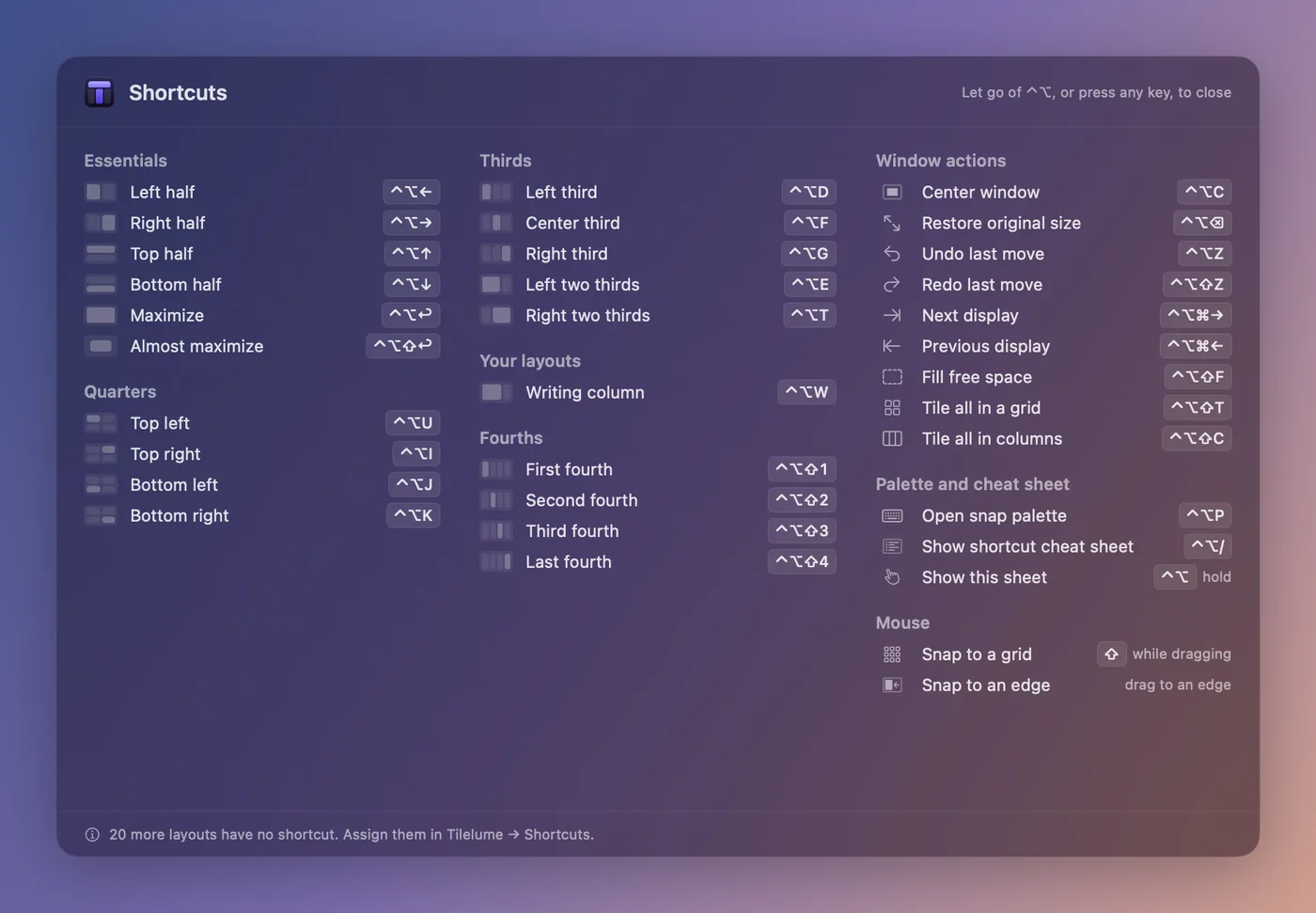
Every layout, one key away.
Forgot a shortcut? Hold ⌃⌥ for a moment and the cheat sheet lists them all. Record your own, with conflict warnings.
Workspaces
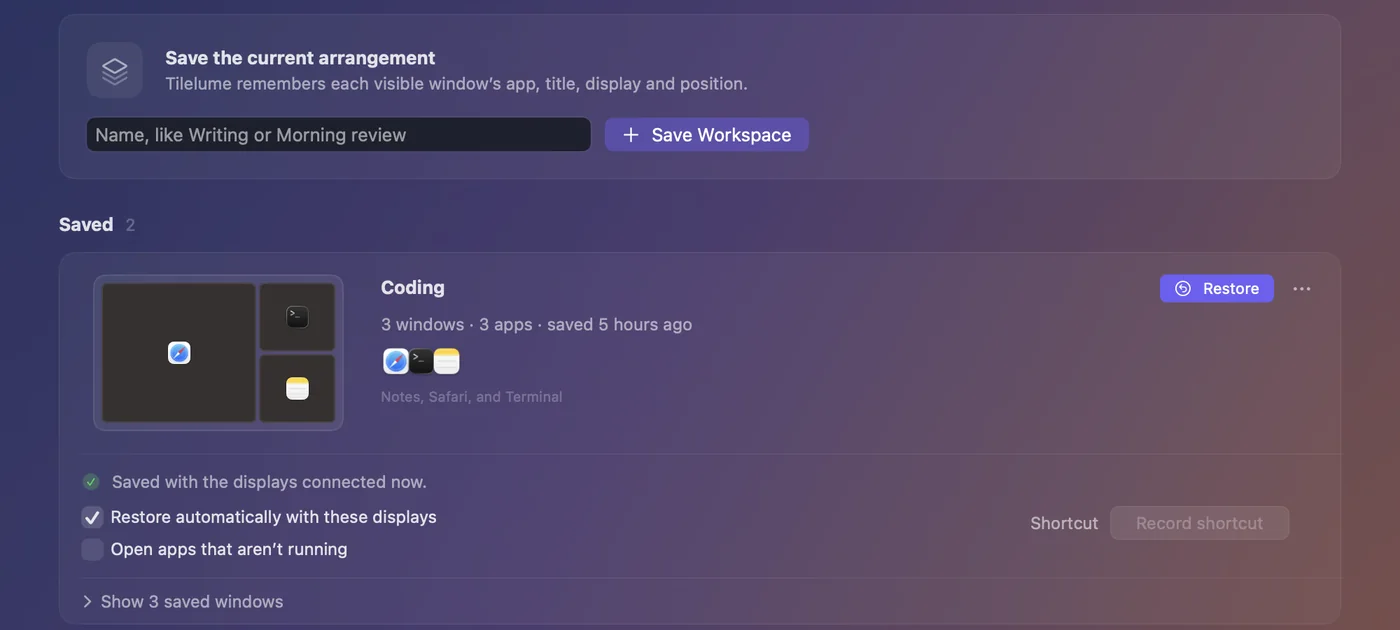
Put your whole desk back.
Save how your windows are arranged and restore it with a click or a shortcut, or automatically when the same displays reconnect. Workspaces match windows by app and title; they don’t reopen documents or switch Spaces.
Rules
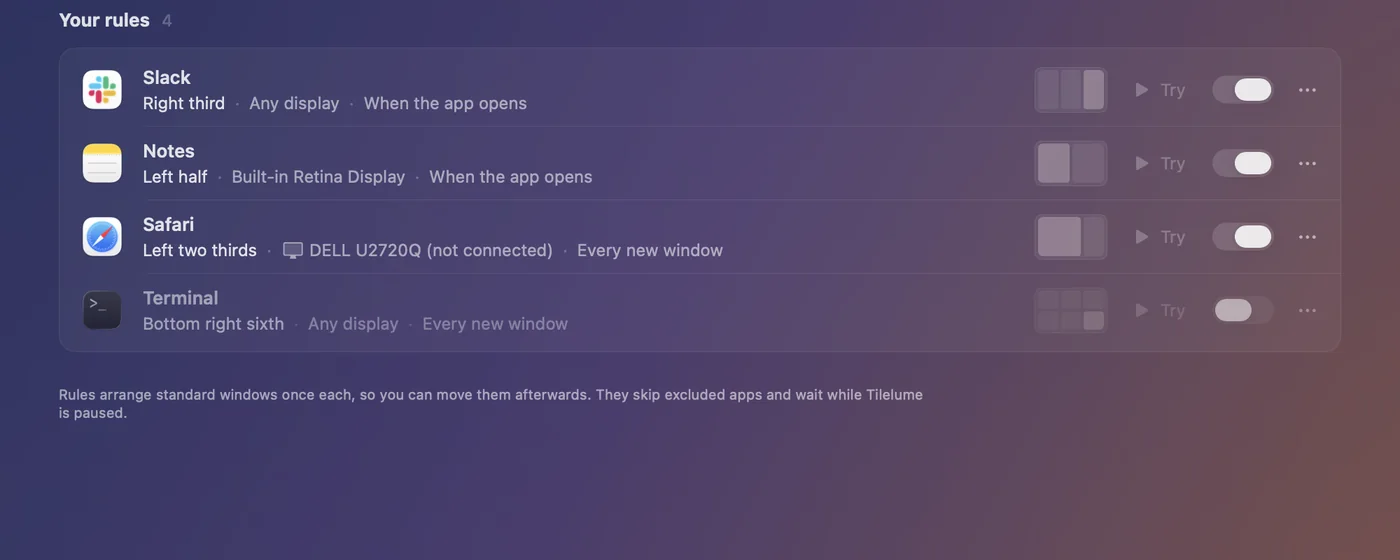
Apps open where they belong.
Send Slack to the right third and Notes to the left half, every time. Each window is placed once, so you can still move it afterwards.
And the details you’d hope for
Grid drag
Hold ⇧ while dragging to sweep across a grid of cells and drop the window on your selection.
Restore on drag-away
Drag an arranged window away and it gets its earlier size back.
Resize neighbors together
Drag the edge between two arranged windows and both resize.
Move and resize with ⌃⌥
Optional. Hold ⌃⌥ and drag anywhere in a window to move it; right-drag or add ⇧ to resize.
Fill free space
⌃⌥⇧F moves the window into the largest area other windows leave free, with your gaps.
Tile everything
⌃⌥⇧T arranges a display’s windows in a balanced grid, ⌃⌥⇧C in columns. One undo step.
Undo and redo
100 steps of history, plus each window’s original size, one shortcut away.
Green-button picker
Hover the green button of any window for a compact grid of layouts.
Automation
tilelume://links and AppleScript for Shortcuts, Raycast, Alfred and Terminal. Off until you turn it on.Ten languages
English, 简体中文, 繁體中文, 日本語, 한국어, Deutsch, Français, Español, Português (Brasil) and Italiano.
Make it yours
Gaps, edge sensitivity and delay, app exclusions, five accent colors and optional sounds.
Portable settings
Export and import preferences, shortcuts, layouts, rules and workspaces as validated JSON.
By hand vs. Tilelume
Stop dragging corners.
The window jobs you do a dozen times a day, without the fiddling.
Two windows side by side
Drag each window over, then pull at corners until the edges meet.
⌃⌥← and ⌃⌥→, or drag each one to an edge.
One third of a wide display
Guess the width, then nudge until it looks about right.
⌃⌥D for an exact left third.
A window on your other display
Drag it across, then resize it all over again.
⌃⌥⌘→ sends it to the next display.
Your setup after docking
Rebuild it, window by window.
A saved workspace restores itself when the same displays reconnect.
Room for one more window
Shuffle everything else out of the way.
⌃⌥⇧F moves it into the largest free space.
Take back a move
Remember where it was and drag it back.
⌃⌥Z, up to 100 steps.
Privacy
What happens on your Mac stays there.
Tilelume needs one permission, Accessibility, to move and resize other apps’ windows. It uses it for that and nothing else.
Read the privacy policyNo account
Nothing to sign up for, nothing to sign in to.
No analytics
No tracking and no usage statistics.
No network connection
Tilelume doesn’t contact any server. Nothing leaves your Mac unless you export it.
Accessibility access only
Used to find a window, read its position and title, and move it. Never your keystrokes or window contents.

TilelumeWindow manager for macOS
$2.99once
- All 39 layouts, plus your own
- Workspaces, per-app rules and automation
- Ten languages, light and dark, five accents
- No subscription, no account, no tracking
One-time purchase in US dollars. Needs an Apple silicon Mac with macOS 13 Ventura or later.
Pricing
One price. The whole app.
Every feature on this page is in the app you buy. There are no tiers, no trial timer and no upgrade prompts inside Tilelume.
- Will it run on my Mac?
- Any Mac with Apple silicon (M1 or later) on macOS 13 Ventura or newer. It won’t run on Intel Macs.
- What does it ask for?
- One permission, Accessibility, so it can move other apps’ windows. macOS asks you once.
- What if it’s not for me?
- Refund policy: to be announced.
FAQ
Questions, answered.
The privacy policy lists exactly what Tilelume reads and stores.
Which Macs does Tilelume run on?
Any Mac with Apple silicon running macOS 13 Ventura or later. The current build is for Apple silicon only, so it won’t run on Intel Macs.
Why does it need Accessibility access?
macOS asks you to approve any app that moves and resizes other apps’ windows. Tilelume uses Accessibility access only to find the front window, read its position and title, and move it. It doesn’t record keystrokes or window contents, and nothing leaves your Mac.
Does Tilelume collect any data?
No. There’s no account, no analytics and no network connection. Your settings live in a file on your Mac and only leave it if you export them.
Is it a subscription?
No. Tilelume is $2.99, paid once.
Can I get a refund?
Refund policy: to be announced.
I already use another window manager. Will they clash?
Two window managers compete for the same shortcuts and edge drags, so pause the other one while you try Tilelume. If macOS’s own drag tiling gets in the way, you can require ⌥ for edge snapping, or turn edge snapping off and keep the shortcuts.
Does it work with every app?
Tilelume arranges standard app windows. Some apps set a minimum or fixed window size; Tilelume respects that and tells you so. Native full-screen windows, special panels and windows in other Spaces are limited by macOS.
Can I automate it?
Yes. Turn on automation in Settings, then use
tilelume:// links or AppleScript from the Shortcuts app, Raycast, Alfred or Terminal. For example, open -g "tilelume://snap/leftHalf" moves the focused window to the left half.Which languages does it speak?
English, 简体中文, 繁體中文, 日本語, 한국어, Deutsch, Français, Español, Português (Brasil) and Italiano. Tilelume follows your Mac’s language, or you can choose one in Settings.

Give every window its place.
One small purchase, and every window on your Mac has somewhere to go.
Buy Tilelume $2.99Apple silicon · macOS 13 or later · No subscription